Evaluation Sets
Evaluation Sets allow you to create multiple evaluation configurations for different use cases, A/B testing, or specialized evaluation strategies.
What is an Evaluation Set?
Section titled “What is an Evaluation Set?”An Evaluation Set is a configuration that defines how AI responses are evaluated, including:
- Which operation types to evaluate
- How to extract evaluation criteria
- Custom prompt templates
- Custom scoring rules
- Tag-based routing
- Keyword-based triggering
- Context depth settings
You can create multiple evaluation sets to test different strategies or evaluate different types of content.
Evaluation Set Selection Flow
Section titled “Evaluation Set Selection Flow”The system uses a fall-through mechanism to select the best matching evaluation set. Here’s the exact order of criteria applied:
-
Global Tag Exclusions (Circuit Breaker)
- What: Checks request tags against Global Tag Exclusions in module settings
- Result: If any excluded tag is present, system aborts immediately and returns
NULL(no evaluation) - Priority: Highest - no sets are even considered
- Default: Excludes
ai_agentstag (AI Agents calls are handled separately)
-
Global Query Exclusion (Circuit Breaker)
- What: Checks query text against Global Query Exclusion Keywords in module settings
- Result: If any keyword matches, system aborts immediately and returns
NULL(no evaluation) - Priority: Highest - no sets are even considered
-
Candidate Identification
- Gets all enabled evaluation sets sorted by weight (lowest weight first)
- Filters candidates by:
- Operation type matches (
chatorchat_completion) - All required tags match (empty tags match all requests)
- No excluded tags present on request
- Operation type matches (
- Note: Sets can have no tags or no keywords
-
Developer Alter Hook
- Hook:
hook_ai_autoevals_evaluation_sets_alter() - Purpose: Allows other modules to remove sets from candidates
- Use Cases: Language filtering, user role restrictions, time-based routing
- Hook:
-
Per-Set Keyword Matching (Fall-Through Logic) System iterates through candidates in weight order:
- If set has query exclusion keywords: Check query text, skip if matched
- If set has query trigger keywords: Check query text, skip if NOT matched
- If set has no trigger keywords: Match automatically
- First set that passes is selected (no further checking)
-
Winner Selection
- The first set to pass all checks is used
- Because sets are checked in weight order, specific sets (low weight) are tried before general sets (high weight)
Example: Fall-Through Behavior
Section titled “Example: Fall-Through Behavior”Set A (Weight 0): Query keywords = "weather"Set B (Weight 10): No keywords (catch-all)Query: “What is the time?”
- Set A checked first → Fails keyword check (no “weather”) → Skip
- Set B checked next → Passes (no keywords) → SELECTED
Query: “What is the weather like?”
- Set A checked first → Matches keywords → SELECTED
- Set B never checked (Set A won)
Key Behaviors
Section titled “Key Behaviors”- Empty keywords = match all: Sets with no trigger keywords will match any query
- Weight determines priority: Lower weight = higher priority (checked first)
- Fall-through continues: If a set fails keyword check, system tries next candidate
- Global exclusion stops everything: If matched, no evaluations occur
- Hook runs early: Modules can filter before keyword checks
Note: Evaluation sets with no tags and no keywords act as “catch-all” or “default” sets.
Create an Evaluation Set
Section titled “Create an Evaluation Set”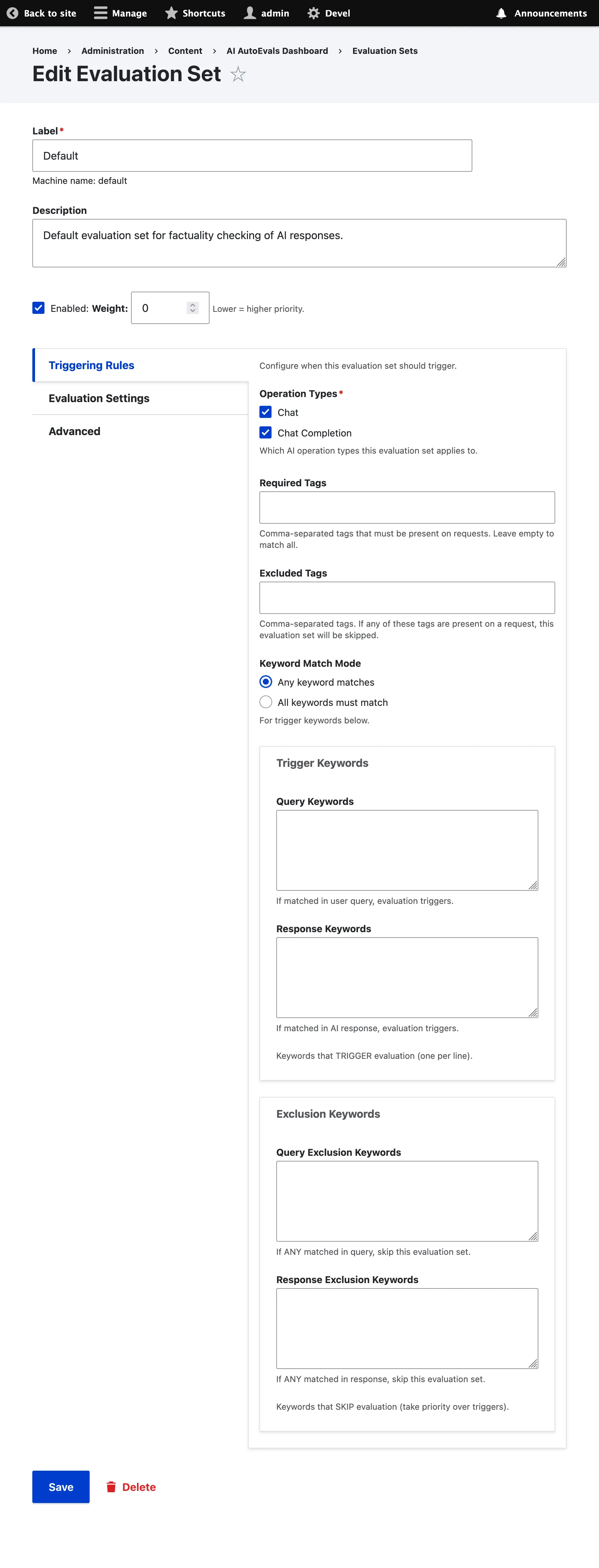
Basic Steps
Section titled “Basic Steps”-
Navigate to
/admin/content/ai-autoevals/sets -
Click “Add Evaluation Set”
-
Configure the evaluation set
-
Save the configuration
Configuration Options
Section titled “Configuration Options”The evaluation set form is organized into vertical tabs for better navigation:
Basic Settings (top of form)
Section titled “Basic Settings (top of form)”- Label: Name for your evaluation set (e.g., “Strict Evaluation”, “Lenient Evaluation”)
- Description: Optional description of the evaluation set’s purpose
- Status: Enable or disable the evaluation set
- Weight: Priority when multiple sets match (lower = higher priority)
Triggering Rules Tab
Section titled “Triggering Rules Tab”- Operation Types: Which AI operations to evaluate (chat, chat_completion)
- Required Tags: Comma-separated tags that must be present on requests
- Excluded Tags: Comma-separated tags that, when present, will skip this evaluation set
- Keyword Match Mode: ‘Any’ or ‘All’ for trigger keywords below
- Trigger Keywords:
- Query Keywords: Keywords that TRIGGER evaluation when matched in user query
- Response Keywords: Keywords that TRIGGER evaluation when matched in AI response
- Exclusion Keywords:
- Query Exclusion: Keywords that SKIP evaluation when matched in user query
- Response Exclusion: Keywords that SKIP evaluation when matched in AI response
- Note: Exclusion keywords take priority over trigger keywords
Evaluation Settings Tab
Section titled “Evaluation Settings Tab”- Fact Extraction Method: How to extract evaluation criteria
- AI Generated: Use LLM to extract criteria from user question
- Rule-Based: Use simple rules and patterns
- Hybrid: Combine AI-generated and rule-based extraction
- Context Depth: Number of conversation turns to include (0-20)
- Custom Knowledge: Domain-specific knowledge for fact extraction (see below)
Advanced Tab
Section titled “Advanced Tab”- AI Prompt Entity ID: Reference to an ai_prompt entity (optional)
- Custom Prompt Template: Override the default evaluation prompt
- Score Mapping: Customize the scoring for each evaluation choice
- (A) Subset: Default 0.4
- (B) Superset: Default 0.6
- (C) Exact Match: Default 1.0
- (D) Disagreement: Default 0.0
- (E) Irrelevant: Default 1.0
Scoring Settings
Section titled “Scoring Settings”- Choice Scores: Customize scoring for each evaluation choice
- A (Exact Match): Default 1.0
- B (Superset): Default 0.6
- C (Subset): Default 0.4
- D (Disagreement): Default 0.0
Keyword Triggering
Section titled “Keyword Triggering”- Keyword Match Mode: How keywords must match
- Any: At least one keyword must match
- All: All keywords must match
- Query Keywords: Keywords that must appear in user’s question (one per line)
- Leave empty to skip query-based triggering
- Case-insensitive matching
- Response Keywords: Keywords that must appear in AI’s response (one per line)
- Leave empty to skip response-based triggering
- Case-insensitive matching
Exclusion Keywords
Section titled “Exclusion Keywords”- Query Exclusion Keywords: Keywords that, if present in the user’s question, will skip evaluation (one per line)
- Takes priority over trigger keywords
- Leave empty to disable query exclusion
- Case-insensitive matching
- Response Exclusion Keywords: Keywords that, if present in the AI’s response, will skip evaluation (one per line)
- Takes priority over trigger keywords
- Leave empty to disable response exclusion
- Case-insensitive matching
Important: Evaluation sets without tags or keywords can still be triggered as “catch-all” or “default” sets. Empty tags/keywords mean “match all requests.” Exclusion keywords always take priority over trigger keywords.
Global Exclusion Keywords
Section titled “Global Exclusion Keywords”In addition to per-set exclusion keywords, you can configure global exclusion keywords in Module Settings (/admin/config/ai-autoevals/settings) that apply to ALL evaluation sets:
- Global Query Exclusions: Applied first before any per-set exclusions
- Global Response Exclusions: Applied first before any per-set exclusions
- Global Tag Exclusions: Tags that, when present on requests, skip evaluation across all sets
- Priority: Global tag exclusions > Global exclusions > Per-set exclusions > Trigger keywords
This is useful for excluding test/debug content across all evaluation sets without configuring each set individually.
Default Global Tag Exclusion: The module by default excludes the ai_agents tag from evaluation. AI Agents requests are handled separately through AgentFinishedExecutionEvent for optimal integration with the AI Agents workflow.
Custom Knowledge
Section titled “Custom Knowledge”Custom Knowledge allows you to provide domain-specific context that guides the fact extractor to create more accurate and specific evaluation criteria.
When to Use Custom Knowledge
Section titled “When to Use Custom Knowledge”- Product-specific evaluations: When AI responses should contain accurate product specifications
- Domain expertise: When responses require specific technical or business knowledge
- Compliance requirements: When responses must adhere to specific rules or guidelines
- Brand consistency: When responses should align with your organization’s messaging
Example
Section titled “Example”Without custom knowledge, a question like “What is the battery life of SuperWidget?” would generate generic criteria like:
- “The answer should address battery life”
With custom knowledge containing your product specifications:
Product: SuperWidget Pro- Battery life: 8 hours continuous use- Charging time: 2 hours- Battery type: Lithium-ion 5000mAh- Fast charging: Yes, 50% in 30 minutesThe fact extractor will generate specific, verifiable criteria:
- “The answer should state that SuperWidget Pro has 8 hours of battery life”
- “The answer should mention continuous use for the battery specification”
Adding Custom Knowledge
Section titled “Adding Custom Knowledge”-
Edit or create an evaluation set
-
In “Evaluation Settings”, find the “Custom Knowledge” textarea
-
Enter your domain-specific information (product specs, business rules, etc.)
-
The field is only visible when using “AI Generated” or “Hybrid” extraction methods
Best Practices
Section titled “Best Practices”- Be specific: Include exact specifications, numbers, and facts
- Structure clearly: Use bullet points or clear sections
- Keep relevant: Only include knowledge relevant to the types of questions being evaluated
- Update regularly: Keep custom knowledge in sync with actual product/service changes
Custom Prompt Templates
Section titled “Custom Prompt Templates”You can override the default evaluation prompt with your own custom template.
Template Variables
Section titled “Template Variables”Available variables in your custom prompt:
{{ facts }}: Extracted evaluation criteria{{ input }}: User’s question{{ output }}: AI response{{ context }}: Conversation context (if enabled)
Example Custom Prompt
Section titled “Example Custom Prompt”You are evaluating the factual accuracy of an AI response.
User Question: {{ input }}
Evaluation Criteria:{{ facts }}
AI Response:{{ output }}
Please evaluate the response and choose:A) The response fully meets all evaluation criteria (Exact Match)B) The response includes all expected information plus additional relevant details (Superset)C) The response includes some expected information but is missing some details (Subset)D) The response contradicts the evaluation criteria (Disagreement)
Provide your analysis and final choice.Evaluation Sets List
Section titled “Evaluation Sets List”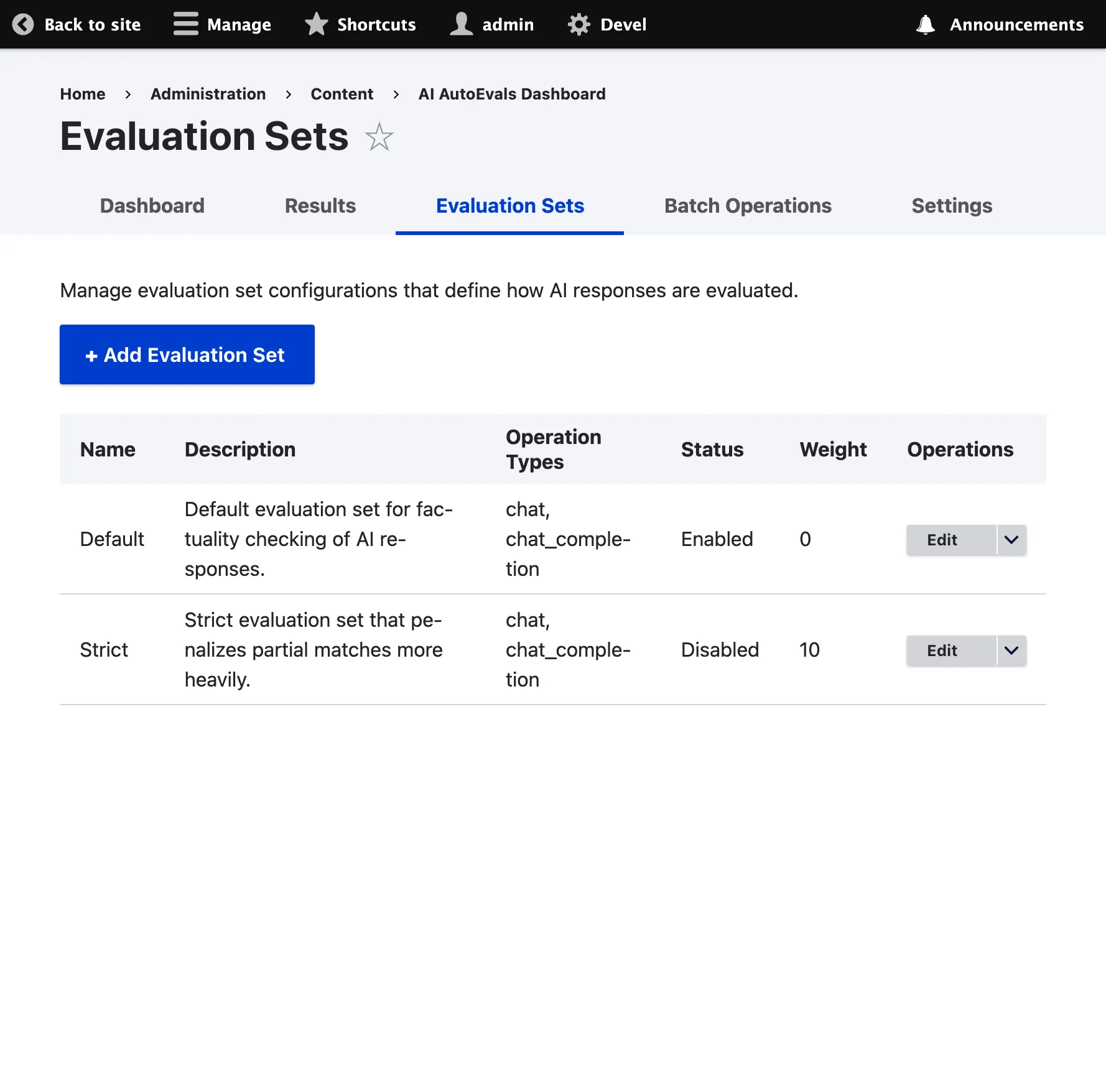
Navigate to /admin/content/ai-autoevals/sets to view and manage all your evaluation sets.
Available Actions
Section titled “Available Actions”- View: See detailed configuration
- Edit: Modify settings
- Disable/Enable: Toggle evaluation set status
- Delete: Remove evaluation set
- Clone: Create a copy of an existing set
Best Practices
Section titled “Best Practices”1. Use Weights Effectively
Section titled “1. Use Weights Effectively”Assign lower weights to specific evaluation sets and higher weights to catch-all sets.
2. Test Before Enabling
Section titled “2. Test Before Enabling”Create evaluation sets in disabled state, test them, then enable for production use.
3. Use Keywords Strategically
Section titled “3. Use Keywords Strategically”Use keyword-based triggering for specialized content and let general sets handle everything else.
4. Document Your Sets
Section titled “4. Document Your Sets”Use the description field to explain the purpose and use case of each evaluation set.
5. Monitor Performance
Section titled “5. Monitor Performance”Regularly review evaluation results to ensure your sets are performing as expected.
6. Leverage Custom Knowledge
Section titled “6. Leverage Custom Knowledge”Add product specifications, business rules, or domain expertise to improve evaluation accuracy.
7. Use Exclusions Wisely
Section titled “7. Use Exclusions Wisely”Configure exclusion keywords to avoid evaluating test content, debug output, or internal communications.
Next Steps
Section titled “Next Steps”- Basic Usage - Learn basic evaluation workflow
- Dashboard - View and analyze evaluation results
- A/B Testing - Test different evaluation strategies