Dashboard
The AI AutoEvals dashboard provides comprehensive analytics and insights into your AI response evaluations.
Access the Dashboard
Section titled “Access the Dashboard”Navigate to /admin/content/ai-autoevals to access the dashboard.
You’ll need the “view ai autoevals results” permission to access the dashboard.
Dashboard Overview
Section titled “Dashboard Overview”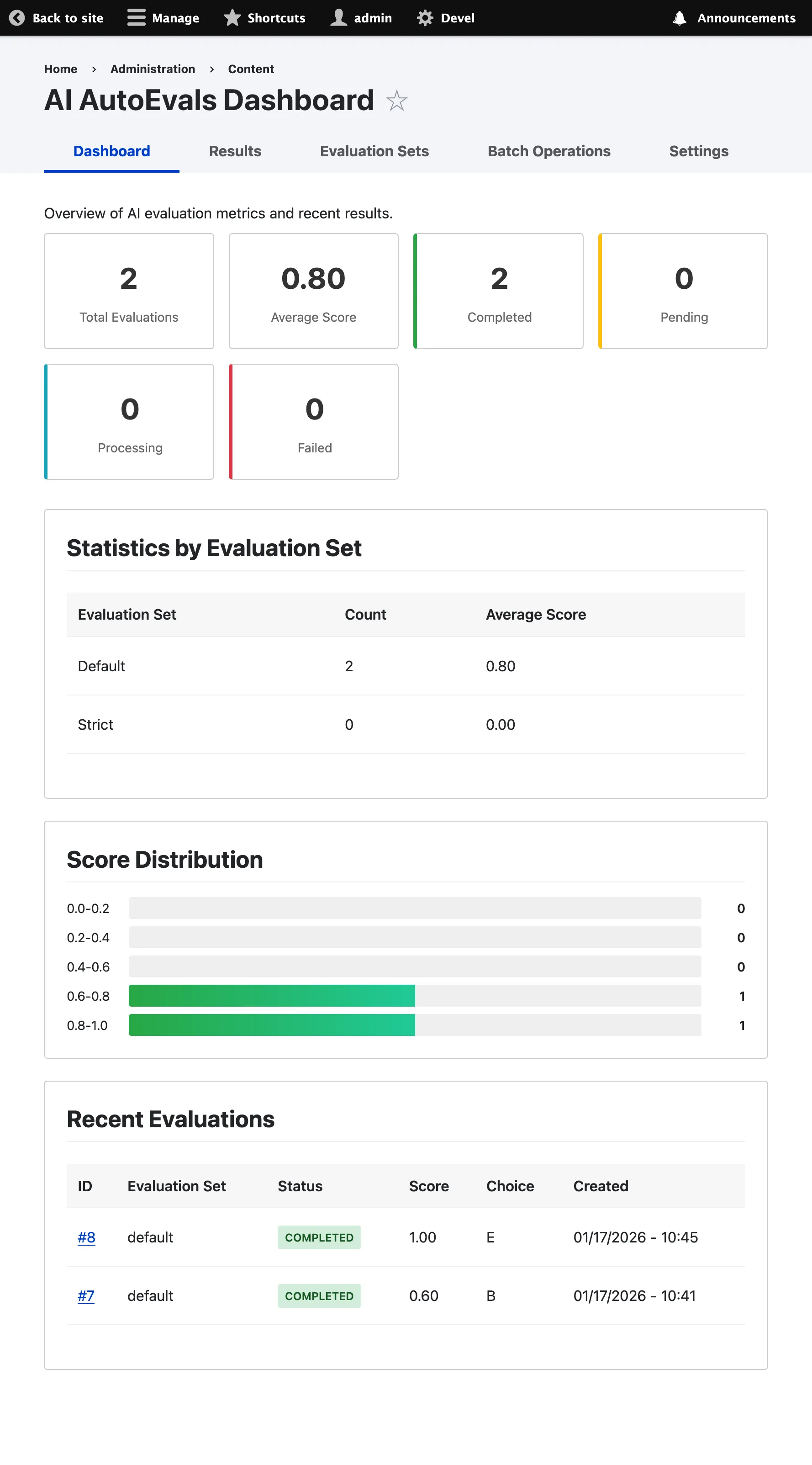
Key Metrics
Section titled “Key Metrics”The dashboard displays the following high-level metrics:
- Total Evaluations: Total number of evaluations processed
- Average Score: Mean score across all completed evaluations (0.0 - 1.0)
- Completion Rate: Percentage of evaluations that completed successfully
Status Breakdown
Section titled “Status Breakdown”View evaluations by status:
- Pending: Awaiting processing
- Processing: Currently being evaluated
- Completed: Successfully evaluated
- Failed: Evaluation failed due to an error
Evaluation Set Performance
Section titled “Evaluation Set Performance”Compare performance across different evaluation sets:
- Average score per evaluation set
- Number of evaluations per set
- Completion rate per set
Recent Evaluations
Section titled “Recent Evaluations”View the most recent evaluations with:
- Request ID
- Evaluation set used
- Score
- Status
- Timestamp
Click on any evaluation to view detailed information.
Score Distribution
Section titled “Score Distribution”Visual chart showing the distribution of scores across all evaluations:
- 1.0 (Exact Match)
- 0.6 (Superset)
- 0.4 (Subset)
- 0.0 (Disagreement)
This helps identify patterns in your AI’s performance.
Evaluations List
Section titled “Evaluations List”Access Evaluations List
Section titled “Access Evaluations List”Click “View All Results” or navigate to /admin/content/ai-autoevals/results
Available Columns
Section titled “Available Columns”- ID: Evaluation ID
- Score: Evaluation score
- Status: Current status (pending, processing, completed, failed)
- Evaluation Set: Name of evaluation set used
- Provider: AI provider used
- Model: AI model used
- Operation Type: Type of operation (chat, chat_completion)
- Created: Date and time created
- Operations: Actions (view, requeue, re-evaluate, delete)
Filtering
Section titled “Filtering”Use the filter form to narrow down evaluations:
- Status: Filter by status (pending, processing, completed, failed)
- Evaluation Set: Filter by specific evaluation set
- Score Range: Filter by minimum and maximum scores
- Provider: Filter by AI provider
- Model: Filter by AI model
- Date Range: Filter by creation date
Sorting
Section titled “Sorting”Click on column headers to sort:
- Score (ascending/descending)
- Created date (ascending/descending)
Batch Operations
Section titled “Batch Operations”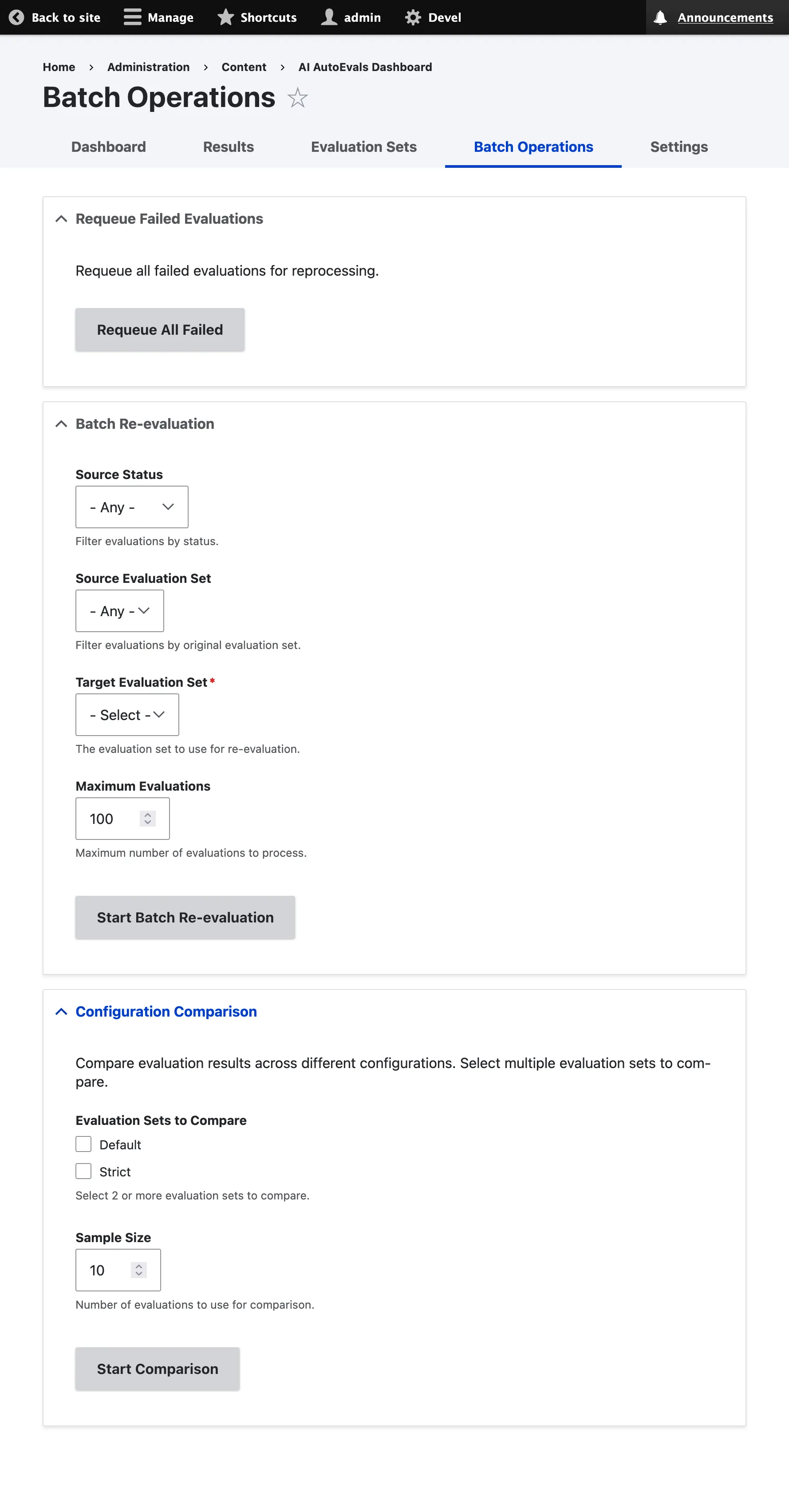
Select multiple evaluations and perform batch operations:
- Requeue: Queue selected evaluations for re-processing
- Re-evaluate: Re-evaluate with a different evaluation set
- Delete: Delete selected evaluations
Evaluation Detail View
Section titled “Evaluation Detail View”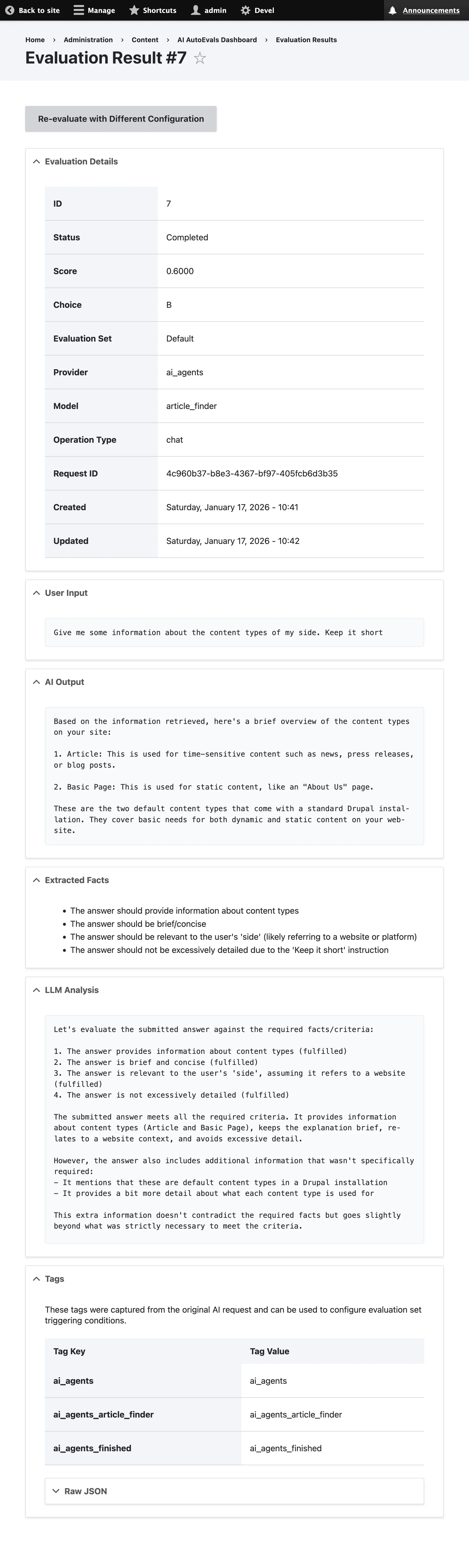
Access Detail View
Section titled “Access Detail View”Click on any evaluation in the list to view detailed information.
Sections
Section titled “Sections”Basic Information
Section titled “Basic Information”- Request ID: Unique identifier for the request
- Evaluation Set: Configuration used for evaluation
- Score: Final score (0.0 - 1.0)
- Choice: Evaluation choice (A, B, C, D)
- Status: Current status
- Created: Timestamp
Request/Response
Section titled “Request/Response”- Input: User’s original question
- Output: AI’s response
- Facts: Extracted evaluation criteria
Analysis
Section titled “Analysis”- Analysis: LLM’s analysis of response
- Reasoning: Explanation for the score
Technical Details
Section titled “Technical Details”- Provider: AI provider used
- Model: AI model used
- Operation Type: Type of operation
- Evaluation Time: How long the evaluation took
Metadata
Section titled “Metadata”- Tags: Associated tags
- Additional Metadata: Custom metadata stored with the evaluation
Actions
Section titled “Actions”On the detail view, you can:
- Requeue: Queue evaluation for re-processing
- Re-evaluate: Evaluate with a different configuration
- Delete: Delete evaluation
Analytics and Insights
Section titled “Analytics and Insights”Track Performance Over Time
Section titled “Track Performance Over Time”Monitor trends by:
-
Regularly checking the average score
-
Comparing score distributions over time
-
Tracking completion rates
-
Identifying patterns in failures
Identify Problem Areas
Section titled “Identify Problem Areas”Use filters to identify issues:
- Filter by status “failed” to see failed evaluations
- Filter by score range to find low-scoring responses
- Filter by provider/model to compare performance
- Filter by tags to identify problematic categories
A/B Testing
Section titled “A/B Testing”Compare different evaluation sets:
-
Filter by different evaluation sets
-
Compare average scores
-
Review score distributions
-
Identify which configuration performs better
Export Data
Section titled “Export Data”Export evaluation data for external analysis:
-
Apply desired filters
-
Select evaluations to export
-
Use batch operations to export as CSV
Notifications and Alerts
Section titled “Notifications and Alerts”Set up custom notifications based on evaluation results using the event system:
use Drupal\ai_autoevals\Event\PostEvaluationEvent;
public function onPostEvaluation(PostEvaluationEvent $event): void {  if ($event->getScore() < 0.5) {    // Send notification for low-scoring evaluations    // Log to moderation queue    // Trigger workflow  }}
See the Event System documentation for more details.
Best Practices
Section titled “Best Practices”-
Regular Monitoring
Check the dashboard regularly to track performance trends and identify issues early.
-
Filter Strategically
Use filters to focus on specific areas:
- Low-scoring evaluations
- Failed evaluations
- Specific evaluation sets
- Specific providers/models
-
Compare Configurations
Use A/B testing to compare different evaluation strategies and optimize your configuration.
-
Investigate Failures
Regularly review failed evaluations to identify and fix configuration or API issues.
-
Track Trends
Monitor performance over time to identify improvements or degradations in AI quality.
Next Steps
Section titled “Next Steps”- Learn about Evaluation Sets to configure different strategies
- Read the API Reference for programmatic access
- View Examples for real-world use cases